Run a CLI macro

Run CLI macros to execute prepared commands on one or more devices of the matching type, with the ability to define parameters for customized execution.

A CLI macro is a fully-formed CLI command ready to use on one or more devices of the matching type.

For some device types, Security Cloud Control provides system-defined macros. System-defined macros cannot be edited or deleted.

Procedure


Step 1

In the left pane, click Security Devices.

Step 2

Click the Devices tab.

Step 3

Select one or more devices of the same type, and in the Device Actions pane on the right, click >_Command Line Interface.

You cannot create macros without first choosing a device.

Step 4

Create a macro for this device type if one does not already exist.

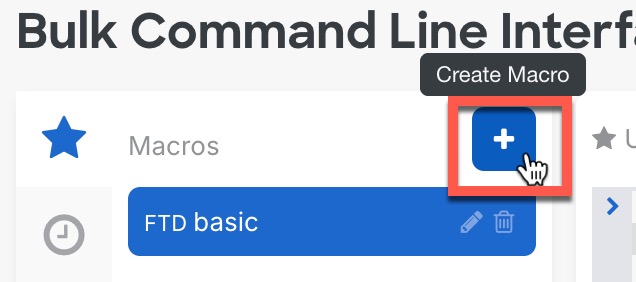
  1. Add a macro in one of the following ways:

    • New macro—On the Macros tab (The Create Macro button is highlighted on the Macros tab, indicating where users can initiate the process of creating a new macro after selecting a device.), create a new macro by clicking the Create Macro (The Create Macro button is highlighted on the Macros tab, indicating where users can initiate the process of creating a new macro after selecting a device.) button.

      Create new macro
      Create New Macro
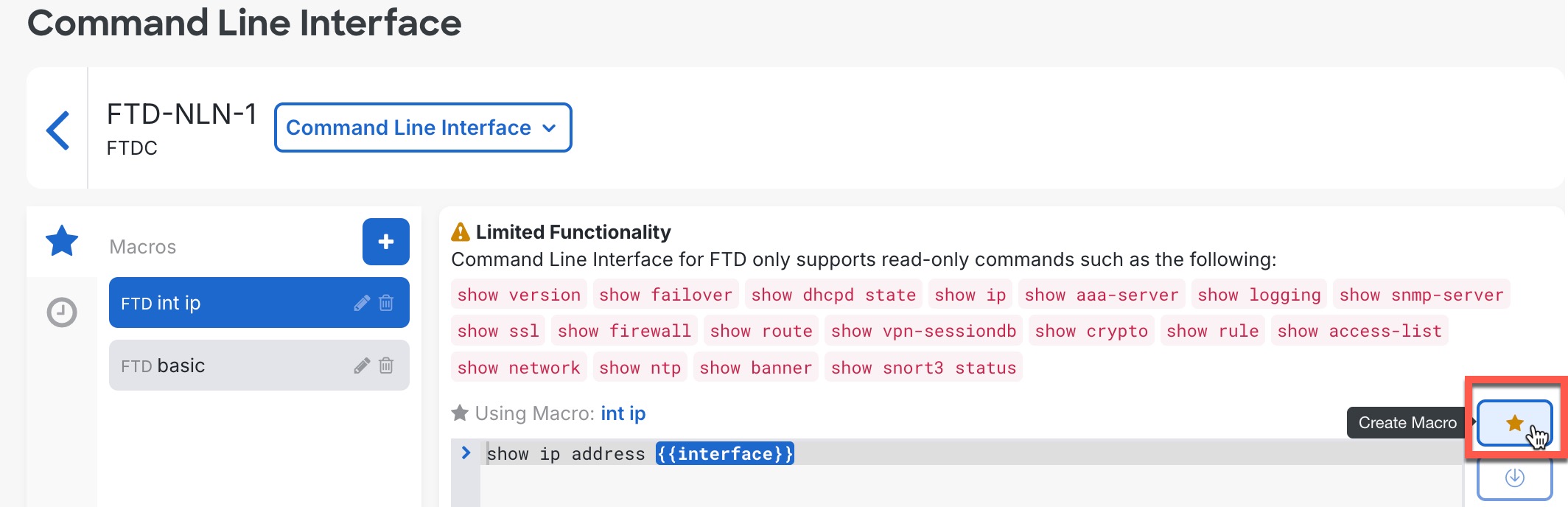
    • From an existing macro—On the Macros tab (The Macros tab displays the option to create a new macro from an existing one, highlighting the Create Macro button for initiating the process.), create a macro starting with the same commands by selecting a macro and then clicking the Create Macro (The Macros tab displays the option to create a new macro from an existing one, highlighting the Create Macro button for initiating the process.) button.

      Create macro from existing
      Create Macro from Existing
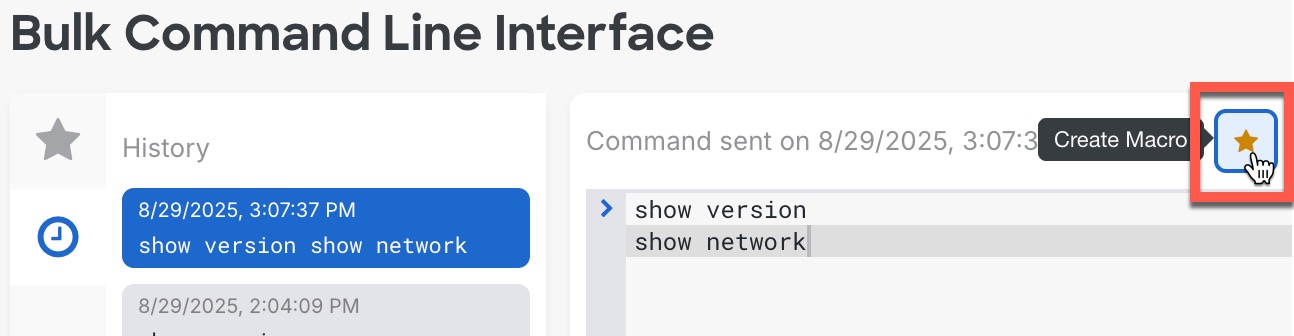
    • From history—On the History tab (The image illustrates the process of creating a macro from the command history in a CLI interface, highlighting the History tab and the Create Macro button.), select a command you already ran, and then click Create Macro (The image illustrates the process of creating a macro from the command history in a CLI interface, highlighting the History tab and the Create Macro button.) button.

      Create macro from history
      Create Macro from History
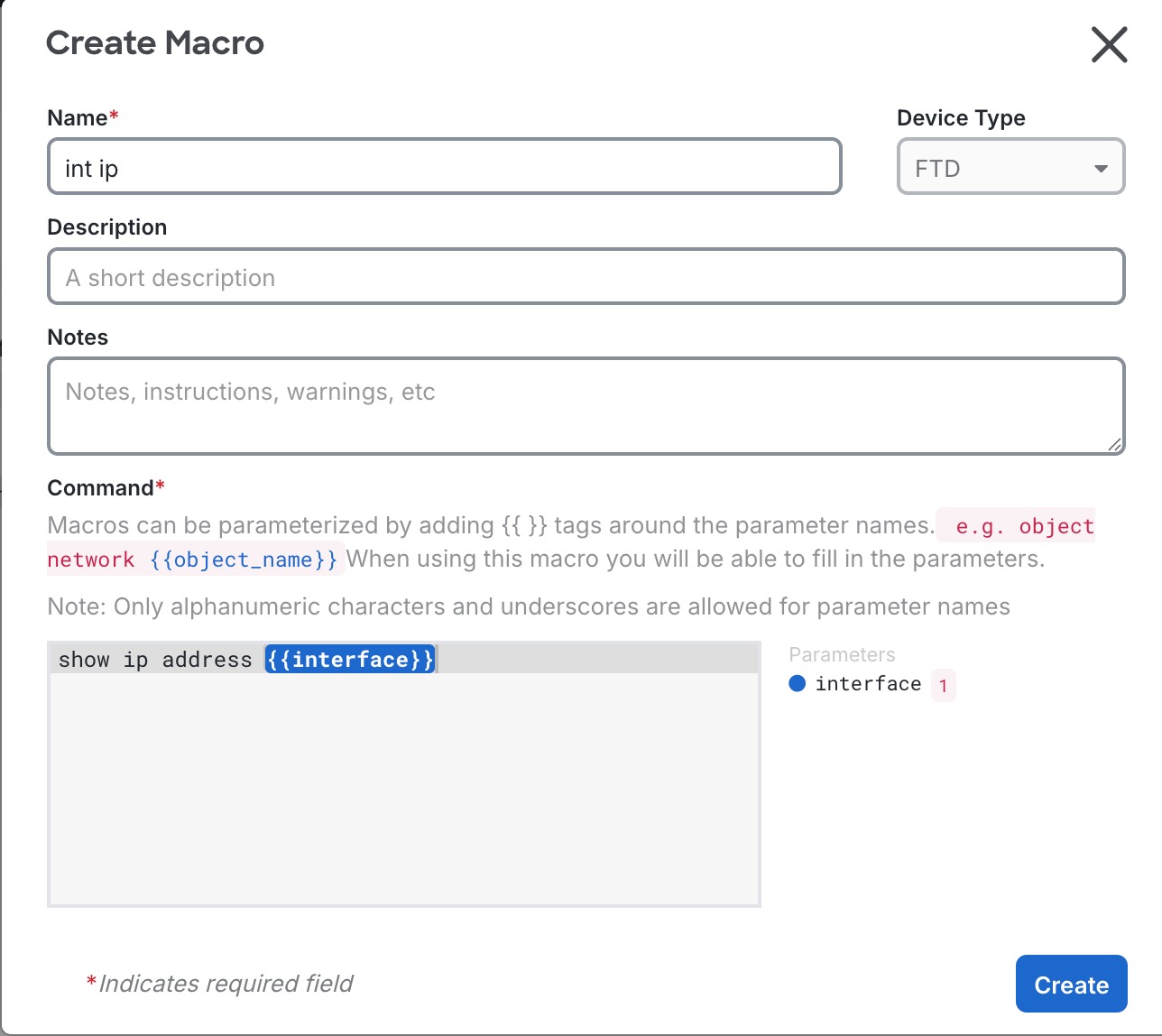
  2. Give the macro a unique name and provide an optional description and notes.

    Create macro
    Create Macro
  3. Enter the commands in the Command field. For variables, enter the parameter surrounded by double curly brackets: {{parameter}} .

    You will define the parameter before you run the macro.

    The interface for creating and managing CLI macros, highlighting the parameter definition and editing options available next to each macro name.

    You can name your parameters anything you want.

  4. Click Create.

Step 5

Click the star The Configure DNS macro interface displays options for defining parameters before executing the macro, including icons for editing or deleting the macro. to open the Macros tab, and select a macro from the list.

You can edit or delete a macro using the icons next to the macro name.

Step 6

Run the macro one of two ways:

  • If the macro has no parameters to define, click Send. The response to the command appears in the response pane. You're done.

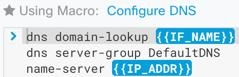
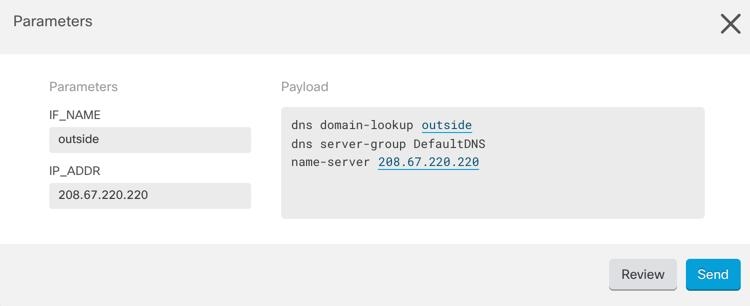
  • If the macro contains parameters, such as the Configure DNS macro below, click >_ View Parameters.

The Configure DNS macro interface displays fields for entering parameters required to execute the macro, along with options to edit or delete the macro.
  1. In the Parameters pane, fill in the values for the parameters in the Parameters fields.

    The Configure DNS macro interface displays fields for entering DNS parameters, with a Send button to execute the command and a response pane for viewing the results.
  2. Click Send.

Step 7

Save configuration changes if you made any.

After you send the command you may see the message, "Some commands may have made changes to the running config" along with two links.

The command line interface displays a message indicating that some commands may have altered the running configuration, with options to save changes or dismiss the notification.
  • Clicking Write to Disk saves the changes made by this command, and any other change that in the running config, to the device's startup config.

  • Clicking Dismiss, dismisses the message and does not save the configuration. You may lose the configuration changes if you reboot the device.


The CLI macro runs on the selected devices with the specified parameters, and any configuration changes can be saved to the device's startup configuration.